Drawing good illustrations is an important part in presenting my work to my peers. Mathematics is very abstract, and starting with the correct mental model is essential to understand the technical details.
So far I used TikZ to produce precise, high-quality drawings. While TikZ is certainly impressive and feature-rich, the length of its manual is also impressive: slightly over 1300 pages.
Oftentimes, instead of constructing the best illustration I can imagine in order to communicate my ideas, I end up restricting myself to what I can produce with my limited knowledge of TikZ.
Too often I had to search TeX exchange for a solution, and while almost always successful, each solution feels very specific to one situation. Growing my TikZ knowledge over time felt very difficult.
One of my main issues with TikZ is actually LaTeX. It is certainly a very useful tool and I am thankful that it exists, yet the language is far from being ergonomic, consistent and expressive. It is simply not meant to be a general-purpose programming language, yet drawing complex diagrams requires algorithms solving even more complex geometrical problems.
Thinking further about it, it is only natural to use a feature-rich and expressive programming language in order to generate illustrations, which can then later be embedded in my LaTeX document.
And so I discovered the diagrams package for Haskell.
diagrams
diagrams is an interesting library for drawing diagrams in Haskell.
Using Haskell’s declarative and functional paradigm means that illustrations are Haskell values,
stored in variables and being able to be modified using a rich set of functions.
Haskell naturally allows me to write a function rectangle width height, taking the width and height the rectangle as parameters.
I can later, for example, set the color of the rectangle, since there is a distinction between generating a value and outputting it.
This stands in contrast with TikZ (and also LaTeX) imperative paradigm.
Moreover, I can use Haskell libraries to solve geometrical problems I might need, which is certainly faster and more convenient than doing so in LaTeX.
I would like to document here my first impressions with diagrams by going through a simple example that show some differences between LaTeX and Haskell when describing illustrations programmatically.
While so far I only scratched the surface of what it can do, I feel it has real potential of replacing TikZ for me.
LaTeX users will probably raise the concern “What about typesetting? If my picture contains text or math in it, the typesetting must look exactly like in the rest of the document”,
something which I certainly agree. diagrams address this by providing several backends, from SVG to cairo, postscript and also PGF (the stuff TikZ is made of, so to speak).
By using the PGF output, I can include my illustrations as LaTeX code in my document, and so all typesetting is done by LaTeX.
I am running this example in Linux. It should also work in other operating systems, but the way you install packages and the commands you run might change. I put the code for my illustrations in a git repository.
Start by creating a folder anywhere you want, for example ~/diagrams-gallery.
To use this library, you first need to install the Glasgow Haskell Compiler (ghc) and cabal-install.
Then run the following three commands in a terminal to download the required Haskell libraries and setup and environment in your current folder.
This may take about a minute depending on your connection.
cd ~/diagrams-gallery
cabal update
cabal install --lib --package-env . diagrams diagrams-lib diagrams-svg
The Penrose triangle
I decided to try out this library by drawing a simple, but amusing, shape: The Penrose triangle, a two-dimensional optical illusion which appears to be an impossible three-dimensional object.
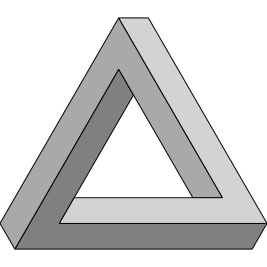
While at first the picture might look complicated, it is essentially made of one “piece”, which is copied and rotated three times with different colors, as illustrated below.
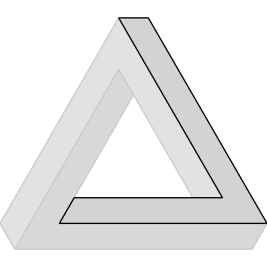
We start by importing the libraries we need. Because this illustration has no text in it, I am going to use the SVG backend.
If you want to use the PGF backend instead, you can simply replace SVG with PGF below.
The program will then generate LaTeX code instead, which you can \include in your .tex file.
I will put the code in a file called Penrose-triangle.hs inside the diagrams-gallery folder mentioned above.
module Main (main) where

import Diagrams.Prelude
import Diagrams.Backend.SVG.CmdLine
Before we can draw the piece, we need to know how big it is.
One simple way of drawing polygons is by specifying the lengths of the sides and the magnitude of the internal angles.
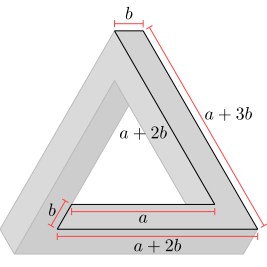
In order to let us fine-tune the dimensions later, I will define two parameters a and b which will give the “width” and the “thickness” of each piece.
The lengths of the sides can be seen in the following picture (yes, for the next picture I used the PGF backend. See, it works!).
To generate the polygon, we will use the lineFromOffsets function.
As the name suggest, this creates a line given a sequence of vectors.
So you can make a square of side one with lineFromOffsets [r2 (0,1), r2 (1,0), r2 (0,-1), r2 (-1,0)], where r2 is used to create the vector.
This can be read as “Start at (0,0). Move 1 unit up. Move 1 unit right. Move 1 unit down. Move 1 unit left.”
If you have not skipped your trigonometry classes in school, you should notice that the internal angles of the equilateral triangle in the middle are all equal to 120°, which is 1/3 of a circle.
Now it is just a matter of punching the values above into code.
-- One of the three pieces of the triangle.
piece :: Double -> Double -> Diagram B
piece a b =
  -- Generate the line, starting at the point (0,0)
  (lineFromOffsets
    -- move a units to the right, making the top of the inner part
    [ a            *^ unitX
    -- go up left, making the right side of the inner part
    , (a + 2 * b)  *^ (rotateBy (1/3) unitX)
    -- the top of the piece
    , b            *^ unitX
    -- right-most edge, going down-right
    , (a + 3*b)    *^ (rotateBy (1/3 + 1/2) unitX)
    -- bottom edge
    , (a + 2 * b)  *^ (rotateBy (1/2) unitX)
    ])
  -- Close the line, adding the missing segment,
  -- and allowing us to fill it with color later.
  # closeLine
  -- Turn the line into a Diagram.
  # stroke
  -- make joins prettier by adding a bevel
  # lineJoin LineJoinBevel
The operator # is the reverse function application operator.
You can read x # f as “put x into f”,
that is, x # f = f x.
I used this operator to save on parentheses and to allow us to write the important part of the function first and add the details later.
Also, *^ is the scalar-vector multiplication operator in diagrams.
So a *^ unitX corresponds to the vector (a,0).
Completing the triangle now is just a matter of properly placing three of these pieces together and giving them different shades of grey to create the illusion of a three-dimensional shape.
To change the fill color, we use the function fc, followed by the name of the color.
There are other ways of specifying colors, check the colour library for more details.
Surprisingly, gray is actually darker than darkgray.
As you might expect, rotate is a function used to rotate a diagram.
We specify the unit by writing 120 @@ deg.
We could use radians by writing (pi * 2/3) @@ rad instead.
The translate function shifts along a vector. I could have used translateX in this case and spared the vector
Skipping the details, the function mconcat combines many diagrams together by overlaying them on top of each other.
If you know what a monoid is, you can understand mconcat [a1, a2, ...] as a1 <> (a2 <> (...)),
where <> is the monoid operation of drawing a1 on top of a2.
If you do not know what a monoid is, just think of the mconcat function as stacking diagrams as you would pancakes and then flipping them, with the first one ending on top.
There are also functions which can place diagrams relative to each other, but we do not need them in this example.
dia :: Double -> Double -> Diagram B
dia a b = let pc = piece a b in mconcat
      [ pc # fc lightgray
      , pc # fc darkgray
           # rotate (120 @@ deg)
           # translate ((a - b) *^ unitX)
      , pc # fc gray
           # translate ((b - a) *^ unitX)
           # rotate (240 @@ deg)
      ]
Note that the order of rotate and translate is different for each piece.
The operations are done from top to bottom, and so the order matters, since rotation is always around the origin.
Using the reverse order for the second piece allowed me to skip a rotateBy (2/3) unitX in the translate function, making the code a bit cleaner.
More interestingly, notice how changing the fill color of each piece is done after “generating” the first piece. This is one big difference (and in my opinion, advantage) of a declarative over an imperative paradigm for drawing pictures. The illustration is only actually drawn at the very end of the computation. Until then, it can be manipulated as any value in Haskell. Consequentially, writing modular code made of “pieces” is easier and more natural in Haskell than in LaTeX, which in turn improves reusability of code, meaning each picture gives you the opportunity of expanding your toolbox a little bit.
Finally, we generate the diagram in the main function, where we also fix our parameters a and b.
main :: IO ()
main = mainWith (dia 10 2 :: Diagram B)
To generate the diagram and put it into the file Penrose-triangle.svg, we run the following in a terminal.
runhaskell Penrose-triangle.hs --width 200 --height 200 --output Penrose-triangle.svg
Conclusion
TikZ certainly has a lot of features and a broad community.
The diagrams library is powerful, but it is harder to find examples or specific libraries for your illustrations.
The most important thing for me, however, is that I can think in Haskell when trying to solve complex problems, but not in LaTeX. Of course, I am familiar with Haskell, and I know many people find the functional paradigm quite daunting. However, nearly everyone I know writes LaTeX and TikZ by copy-pasting existing code and then modifying it; few people actually have any understanding of the semantics of LaTeX. I believe a similar approach can also be adopted here, with the substantial difference that understanding the semantics of Haskell is actually quite doable after you become familiar with its syntax.
One noticeable difference of diagrams for me is that it felt very natural to define my diagram in a modular, composable way.
That is, I defined a function piece a b which I could easily use later on.
I also avoided hard-coding the parameters a and b, something that I would certainly have done in TikZ
as using \newcommand is certainly more cumbersome in this case, as we cannot define things like the fill color later.
Overall I am quite excited with diagrams.
I might need to spend more time defining my own functions since the library is not as large as TikZ,
yet Haskell’s expressive syntax make this task much more approachable than LaTeX.